





How to use our stock 3D CAD Conical Spring Drawings
How to use our stock 3D CAD Conical Spring Drawings
How to use our stock 3D CAD Conical Spring Drawings
This year we are honoring our 25th Anniversary here at Acxess Spring, and we have created 3D CAD drawings for all of our 40,000 Stock Springs online to share with all of our amazing customers. That is 40,000 Stock Springs available. This means, FREE 3D CAD Drawings for all stock Compression Springs, Conical Springs, Torsion Springs, Conical Springs and Coil Springs. As happy as we are about sharing our 3D CAD drawings with you, we are also excited to share this step by step guide on how to properly use them. This way you can take full advantage of our amazing Stock 3D Torsion Spring CAD Drawings. In the following article you will find a step by step guide to ensure you obtain your 3D CAD drawing.
Step 1. Go to The Spring Store

Step 2. Enter your ideal spring dimensions. For example: Outer Diameter, Free Length and the Rate
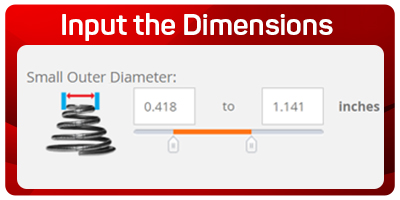
Step3. Click on the search button

Step 4: Scroll down and you will see a table with all of the spring options within the range you searched for.
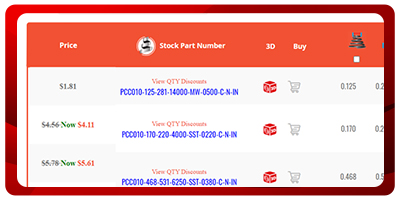
Step 5: Choose the stock conical spring that would be the best fit for your design or project.

Step 6: Click on the red 3D CAD/ SPECS icon.
Step 7: You will get a pop up of a 3d cad drawing for the conical spring you chose (make sure you disable your Pop Up Blocker for downloads)
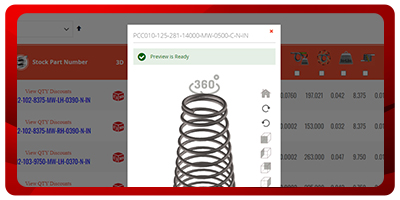
Step 9: On the pop up you will see the part number at the top and at the bottom you will see 3 buttons and a file type box.
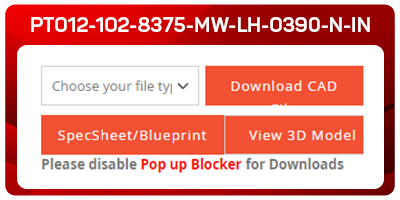
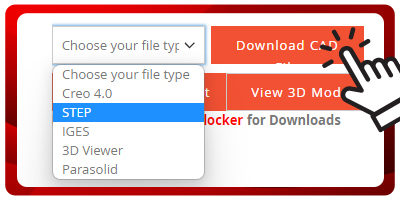
Step 10: The first box is for you to choose the file type in which you would like to download your 3D CAD Drawing: Creo 4.0, STEP, IGES, 3D Viewer or Parasolid.

Step 11: Once you have chosen your file type you will see the button “Download CAD” . Go ahead and click on it so that your 3D cad file downloads.
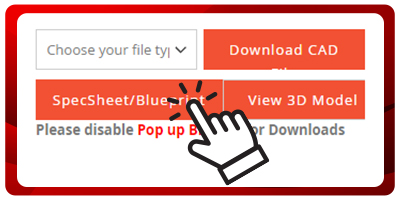
Step 12: Next under the first button you will see the Spec Sheet/Blueprint button. Here you will find a detailed spec sheet and 3D blueprint of your conical spring.
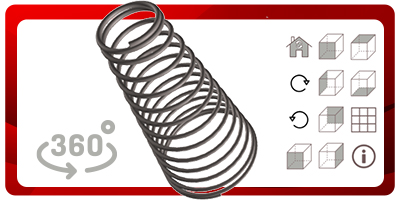
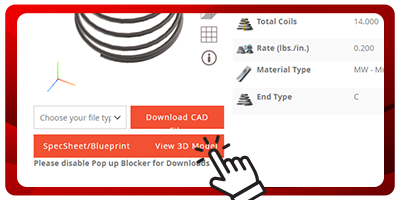
Step 13: The last button on the pop up is the View 3D Model tab. This button takes you to a bigger view of the 3D CAD Drawing before you download it. With this view as well as the quick pop up view you can see your 3D conical spring in various different angles as if you were holding it rite in front of you.
Step 14: Once you have viewed your 3D Conical spring on the Pop Up from the table of results you can click on the part number on the left of the table. By clicking on the Part number in the search table it will take you to the product page which shows all the pricing options for both unitary and higher quantity pricing as well as all the specifications for your spring.

Step 15: Select the amount of conical springs you are interested in purchasing whether it's 5 or a bulk purchase and add to the cart.

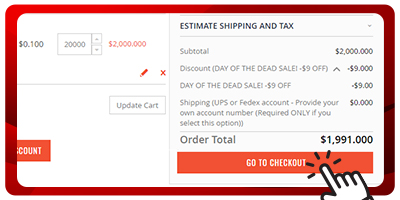
Step 16: Once you have selected your springs go to your cart and click on “Go To Checkout.”
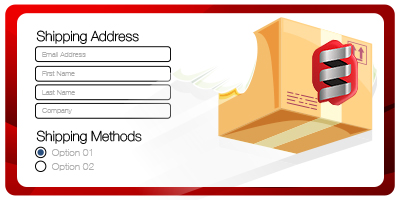
Step 17: Enter all of your shipping information and choose your preferred shipping method.
Step 18: Enter your payment method information. (Please review that all of your shipping and payment method information is correct.)

Step 19: Place your stock conical spring order.

3D Stock Conical Spring CAD Drawings
There are many spring specifications to be considered when buying a stock conical spring , this is why we recommend that you view the stock spring with our 3D Viewer to make sure it looks like the spring you're replacing. You can also download our stock spring 3D CAD files and put our file into your 3D software to make sure it will fit into your new product or device. This new technology will help you make an intelligent decision before purchasing stock springs and also save you time because you won't have to wait for the test springs to arrive. If you are having issues deciding whether the spring you find in our stock will work or not , don’t hesitate to contact us at: (951) 276-2777